Engineering11 min read
Docker networking: from localhost to production with Coolify
localhost inside a container, service names, what Coolify wires up for you, and why a published port walks right past UFW.
Loïc Simon
Fullstack Developer
One evening, I wanted to keep an eye on my VPS. Nothing ambitious: Prometheus to collect metrics, cAdvisor to tell it what each container was using. Two services, a bit of YAML, one click on "Deploy" in Coolify. Everything was green.
Then I opened the Prometheus logs:
dial tcp: lookup cadvisor on 127.0.0.11:53: no such host"No such host." But cAdvisor was running, right there, on the same machine. I could see it in the container list. Prometheus, meanwhile, was calmly insisting it didn't exist.
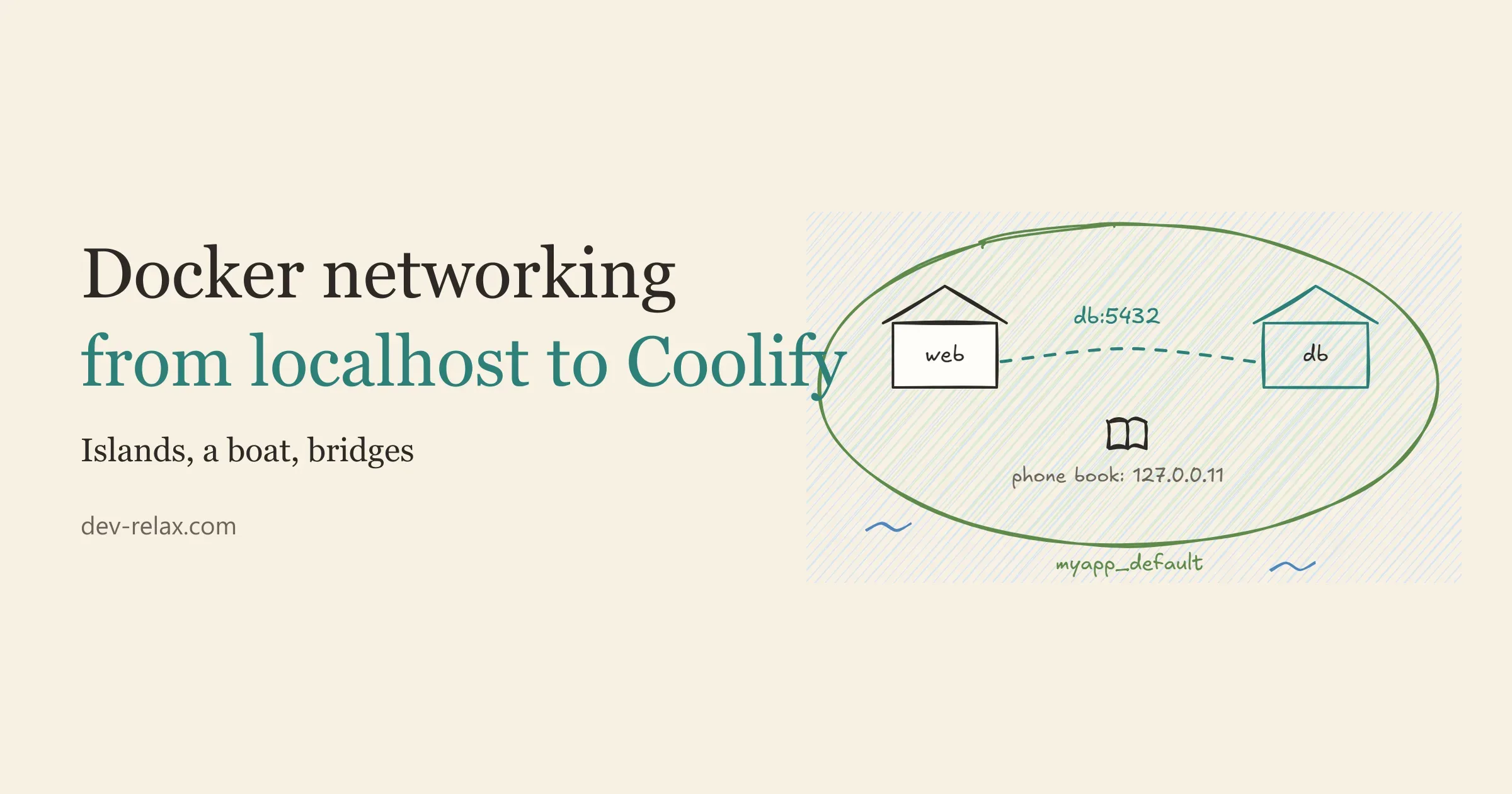
That's the moment Docker networking stops being a detail. As long as everything works, you don't think about it. The day it breaks, it feels like black magic, especially with an extra layer like Coolify on top. This post is the mental model I wish I'd had that evening. Four pictures are enough: some islands, a bedroom, a boat and a wall.
You don't need to be a sysadmin. If you've ever written a docker-compose.yml, you have everything you need.
The mental model: islands on a sea
Picture your VPS as a calm sea. Every time you start a Docker Compose project, Docker builds a little island on it: a network all of its own. The Compose docs put it plainly. For a project in a myapp folder: "A network called myapp_default is created." Each service then joins it (Docker, Networking in Compose).
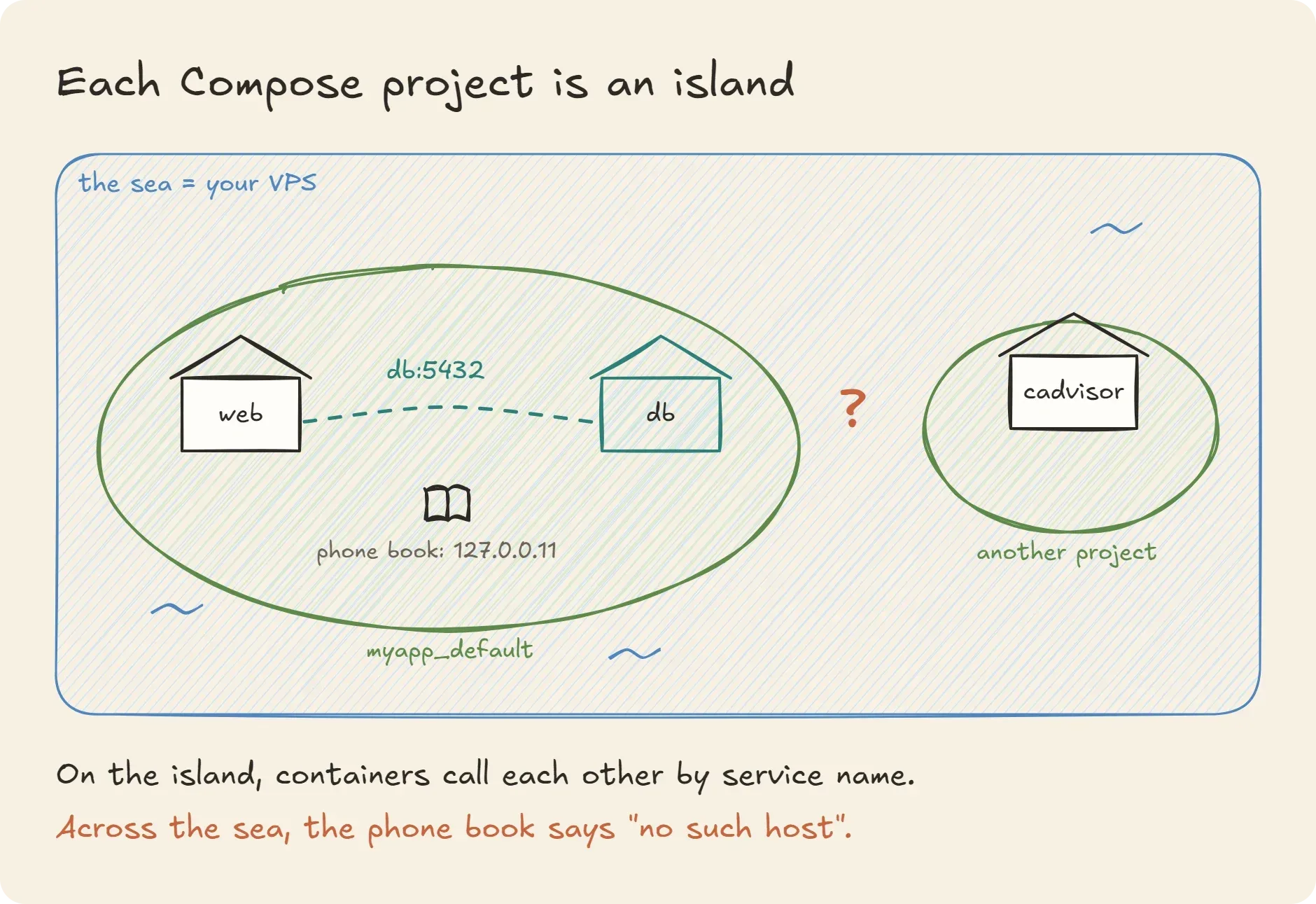
Life on an island is simple. Docker keeps a private phone book there, a small DNS server that always answers at the same address, 127.0.0.11 (Docker, Networking overview). If your file has a web service and a db service, web reaches the database by simply writing db:
services:
  web:
    build: .
    environment:
      DATABASE_URL: postgres://app:password@db:5432/app
  db:
    image: postgres:18
No IP address, and that's on purpose: IPs can change when a container is recreated, names stay. Notice the port too: between services, you use the container port (5432 here). The host port, the one on the left in ports:, "is only used when accessing the service from outside the network" (Docker, Networking in Compose).
Now you can reread my error message. 127.0.0.11:53 is the phone book of Prometheus's island. It looked up cadvisor and answered honestly: nobody by that name lives here. cAdvisor did exist. It just lived on another island.
localhost, or the art of looking under your own bed
Before building any bridges, we need to clear up the most common misunderstanding, the one that trips up almost everyone on day one.
Inside a container, localhost doesn't mean "the server". It means "me". Each container has its own network stack, with its own loopback. An app looking for its database on localhost:5432 is searching its own bedroom, under its own bed. It can search for a long time: the database lives in the next room.
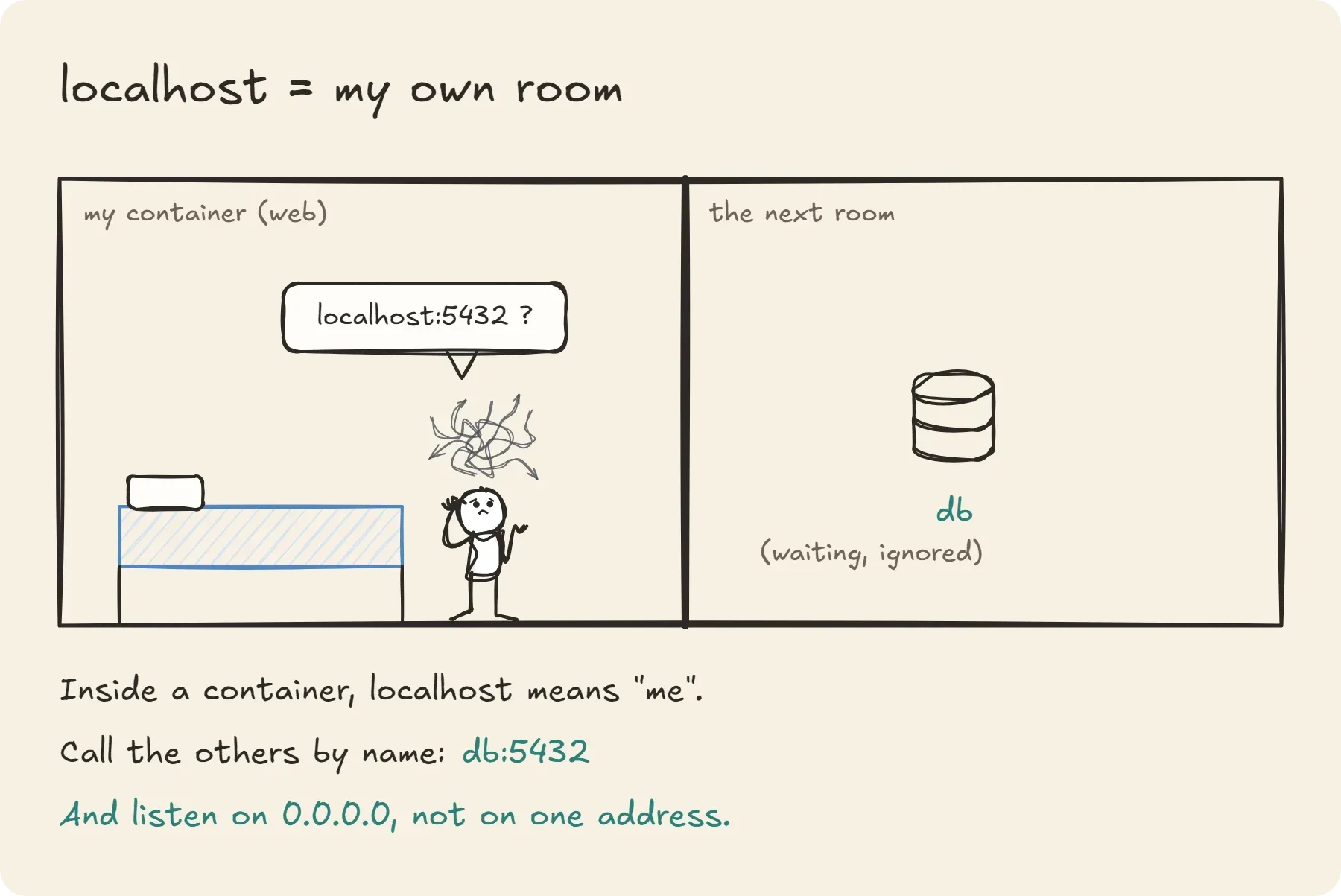
You already know the fix: replace localhost with the service name, db.
The trap has a mirror version, sneakier, and I fell right into it while containerizing my CMS. This time, it's the app that listens in the wrong place. In standalone mode, the little Next.js server listens on the address given by the HOSTNAME variable (Next.js, output). The problem: inside a container, Docker already fills HOSTNAME with the container's ID. So Next.js listens on a single address instead of all of them. The proxy (or the health check that calls localhost), which doesn't necessarily come in through that address, knocks on a door nobody opens, and the browser shows a 502 Bad Gateway. The line that fixes everything, in my Dockerfile:
ENV HOSTNAME=0.0.0.00.0.0.0 means "listen on every interface of the container", including the one the island's network sees. The Coolify docs give exactly this advice when you get a "No Available Server" error: check that the process listens on 0.0.0.0, not only on 127.0.0.1 (Coolify, Docker Compose).
Keep the pair in mind: call others by their name, listen on 0.0.0.0.
Talking to the server itself: host.docker.internal
Sometimes, what your container wants to reach isn't on an island at all but on the mainland: a PostgreSQL installed directly on the VPS, for example.
On Windows and macOS, Docker Desktop gives you a ready-made name, host.docker.internal, that points to your machine. That's what I use to test my CMS image against the PostgreSQL on my PC. On a Linux server, that name doesn't exist by default. You create it with the special value host-gateway, which "resolves to the internal IP address of the host" (Docker, docker container run):
services:
  web:
    extra_hosts:
      - "host.docker.internal:host-gateway"
This is where most tutorials stop, and where a lot of people get stuck. The container now knows where the server is. Someone still has to answer. By default, PostgreSQL only listens on localhost, which "allows only local TCP/IP 'loopback' connections to be made" (PostgreSQL, Connection settings). From PostgreSQL's point of view, your container isn't local at all. So you also need to:
- add the Docker gateway address to
listen_addressesinpostgresql.conf(avoid*: you'd open the database on every interface, including the public one); - allow the container's subnet in
pg_hba.conf. Don't guess it: it depends on the network the container lives on (Coolify creates several), anddocker network inspect <network>shows it in theSubnetfield; - if UFW is active, allow that same subnet on port 5432 (
ufw allow from <subnet> to any port 5432): this traffic, from the container to the host, does go through the firewall; - restart PostgreSQL, because this setting is only read at startup.
Honestly, if the database can live in a container on the same island as the app, that's often simpler. It's what I do for my CMS: the production PostgreSQL is a Coolify resource, reachable only through the internal network, and the "Make it publicly available" option stays unchecked.
What Coolify wires up for you, and what it leaves to you
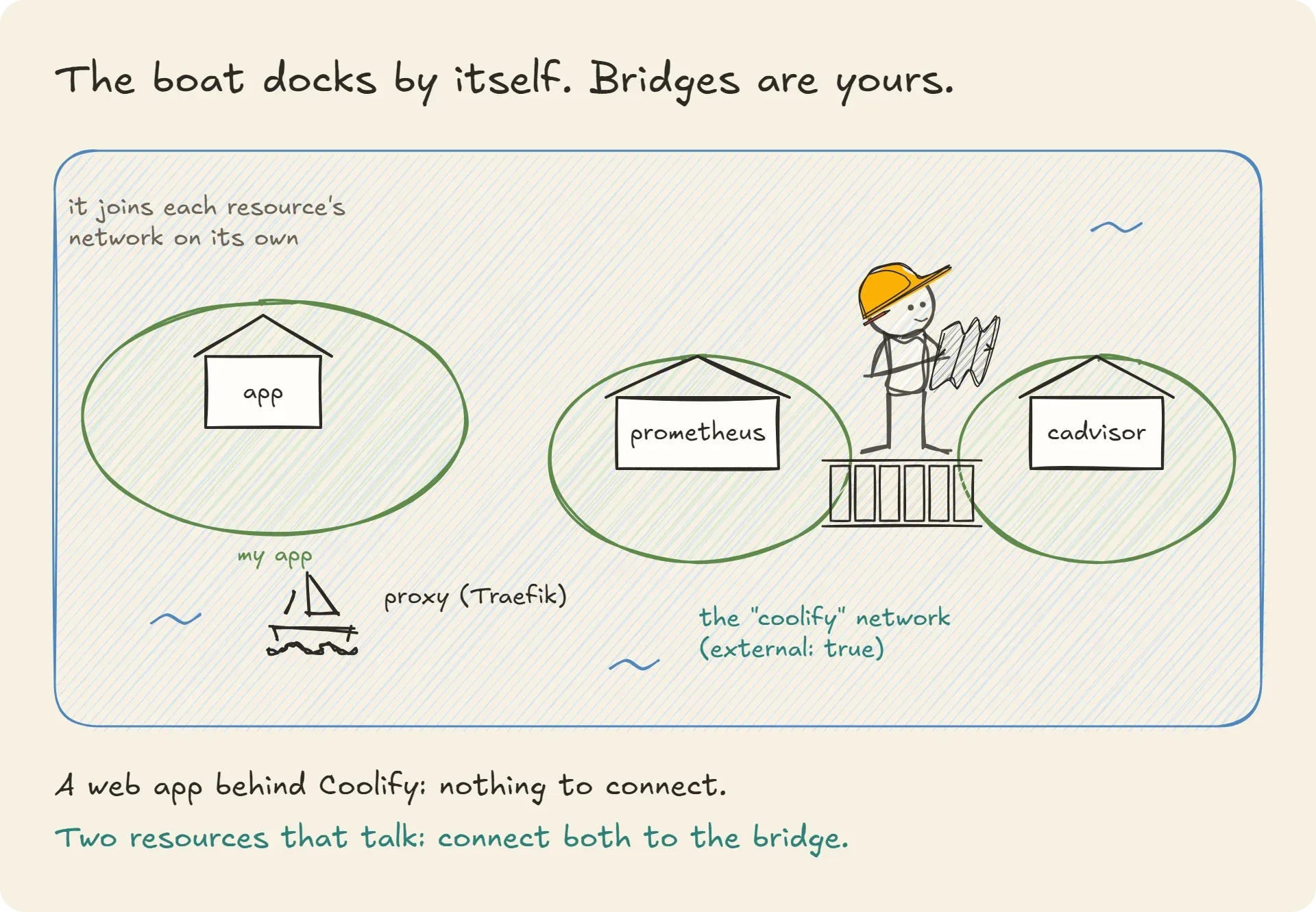
Back to my error. Coolify adds two things to our map: a boat and a bridge.
The boat: the proxy
Coolify installs a proxy, Traefik by default, in a container called coolify-proxy. It's the one that greets visitors on ports 80 and 443 and drops them off in front of the right app. And here's the part I had misunderstood: you do not need to connect your app to any particular network for the proxy to find it. The proxy "joins the coolify network and the resource-specific networks" (Coolify, Networking in Coolify). The boat docks at every island on its own.
What the proxy does need to know is which port your container listens on. In a Compose resource, you add it as a suffix to the domain, for example https://app.example.com:3000: the suffix "tells the Coolify proxy which container port receives the request" (Coolify, Docker Compose).
The bridge: the coolify network
This is a shared network that Coolify creates on every server (Coolify, Networking in Coolify). The proxy doesn't use it to find your app. It's for when two different resources need to talk to each other. And that was exactly my situation: I had deployed Prometheus and cAdvisor as two separate resources, so on two islands. The boat docked at each one just fine, but no bridge connected them.
The fix takes a few lines. In the Compose file, you declare that the coolify network already exists (it's external), and you connect the services that need it:
services:
  prometheus:
    image: prom/prometheus
    networks:
      - coolify

networks:
  coolify:
    external: true
Same thing on the cAdvisor side. For a Compose resource, Coolify also offers a checkbox, Connect to Predefined Network, that does the wiring for you. One detail worth knowing: in that case, Coolify may prefix names to avoid collisions, and its docs advise you to "verify the generated container or service name before using it as a hostname" (Coolify, Docker Compose). If your no such host survives the bridge, that's the first thing to check.
Once both services were on the same network, Prometheus found cAdvisor on the first try. The error that had ruined my evening was actually a very accurate sentence: "I don't know anyone by that name on my island".
Zero ports: why your firewall isn't protecting you
That leaves the most dangerous reflex, one I had too before I understood bridges: "they can't talk to each other, I'll just open the port".
services:
  prometheus:
    ports:
      - "9090:9090"   # "just testing"
It works, of course. But what you just wrote is "open port 9090 on this server to the whole world". And if you were counting on UFW to filter that, bad news: when Docker publishes a port, the traffic is routed "before the firewall rules can be applied, effectively ignoring your firewall configuration" (Docker, Packet filtering and firewalls). Your ufw status can proudly say "deny", and the side door is open anyway.
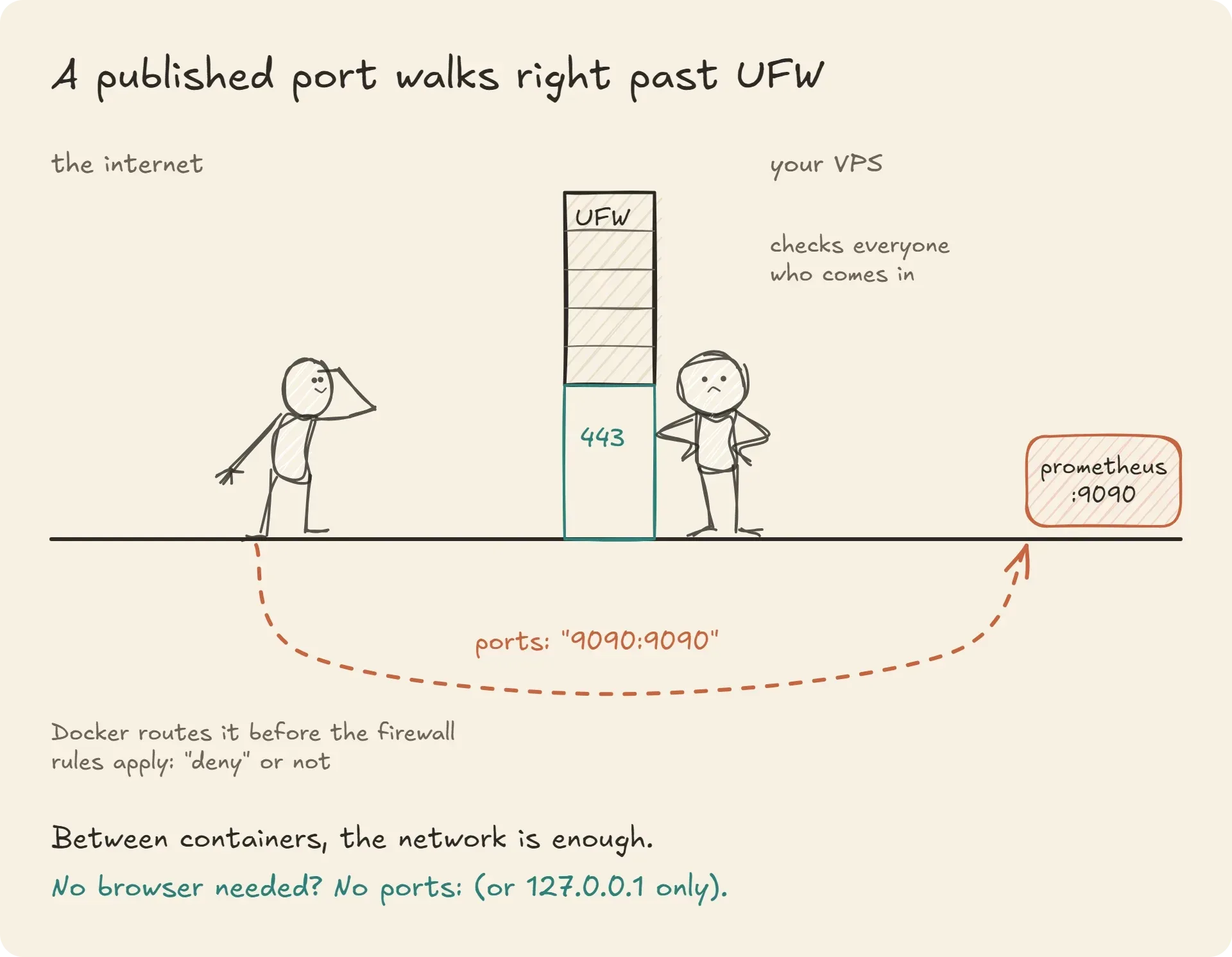
Coolify says the same thing, in fewer words: "Do not publish a service with ports: unless it must be reachable directly on a server interface." The reason: "A published host port bypasses domain-based proxy routing and can expose an internal service" (Coolify, Docker Compose).
The good news is that you almost never need it:
- Between containers, the network is enough. Prometheus reads cAdvisor at
cadvisor:8080across the bridge, without any port being published. Seen from the internet, port 8080 doesn't exist. - For your visitors, the proxy handles it. On the app side, only 80 and 443 need to be published, and the proxy is the one holding them.
- For you, when debugging, publish on the host's loopback only,
"127.0.0.1:9090:9090"(Docker, Compose file reference, ports), then go through an SSH tunnel. The port exists, but only for someone already logged into the server.
Your VPS then becomes a small private town: the services talk quietly among themselves, and only a few well-guarded doors open onto the street.
The two-minute test
Log into your server and run:
docker ps --format "table {{.Names}}\t{{.Ports}}"Look at the PORTS column. Every entry that starts with 0.0.0.0: or [::]: is open to the world, UFW or not.
Don't panic about the ones that belong to Coolify itself: its dashboard publishes 8000, and 6001 and 6002 are used for real-time updates and the web terminal. Its docs explain that once the dashboard is served through a domain, behind the proxy, you can "close public access to ports 8000, 6001, and 6002", keeping 22, 80 and 443 open (Coolify, Firewall). That's set at the server level, not in your Compose file.
For all the others, the ones from your own services, ask yourself: does a human really need to reach this from a browser? If the answer is no, delete the ports: section, or bind it to 127.0.0.1 instead.
Next, to see who lives on the bridge:
docker network inspect coolify --format '{{range .Containers}}{{.Name}} {{end}}'If two services need to talk and they aren't both in that list (or in the same resource), you're probably looking at your next no such host.
What to remember
Situation | What to do |
|---|---|
Two services in the same Compose file | Nothing: they reach each other by service name and container port. |
An app looking for its database on | Replace |
A 502 or "No Available Server" | Make the app listen on |
Reaching a service installed on the server |
|
Two Coolify resources that need to talk | Connect both to the |
A web app behind Coolify | Don't connect anything: the proxy joins the resource's network on its own. |
The urge to open a port "just to test" | Don't write |
Since that evening, my house rule fits in one sentence:
Call each other by name, listen on 0.0.0.0, and only publish what a browser needs to see.There's nothing magic about Docker networking. It's a map: islands, bedrooms, a boat and a wall. Once you know which island each service lives on, error messages go back to being what they were all along, perfectly honest sentences. Mine was simply saying "not here". It was right.
Sources
- Docker, Networking in Compose
- Docker, Networking overview (built-in DNS server
127.0.0.11) - Docker, docker container run, --add-host (special value
host-gateway) - Docker, Packet filtering and firewalls ("Docker and ufw" section)
- Docker, Compose file reference, ports
- PostgreSQL, Connection settings, listen_addresses
- Coolify, Networking in Coolify
- Coolify, Docker Compose
- Coolify, Firewall
- Next.js, output: standalone (
PORTandHOSTNAMEvariables) - Illustrations drawn with Excalidraw; the people come from the Simple Characters library by Peter Hunter (MIT License), the icons from Tabler Icons (MIT License)
I'm Loïc Simon, a freelance web developer in Brittany, France. I take over, secure and document web apps that were left behind by their original developers, and I write about it at dev-relax.com. The quotes in this post link to the official documentation; the cAdvisor error and the CMS 502 come from my own deployments. Like the rest of my work, this post was written with help from an AI assistant, then reviewed and checked by me. Spotted a mistake? Tell me.